Printer paper jam: how to clear it and stop it from happening again
By the PrinterCareUSA team · Independent guide · not affiliated with any printer manufacturer
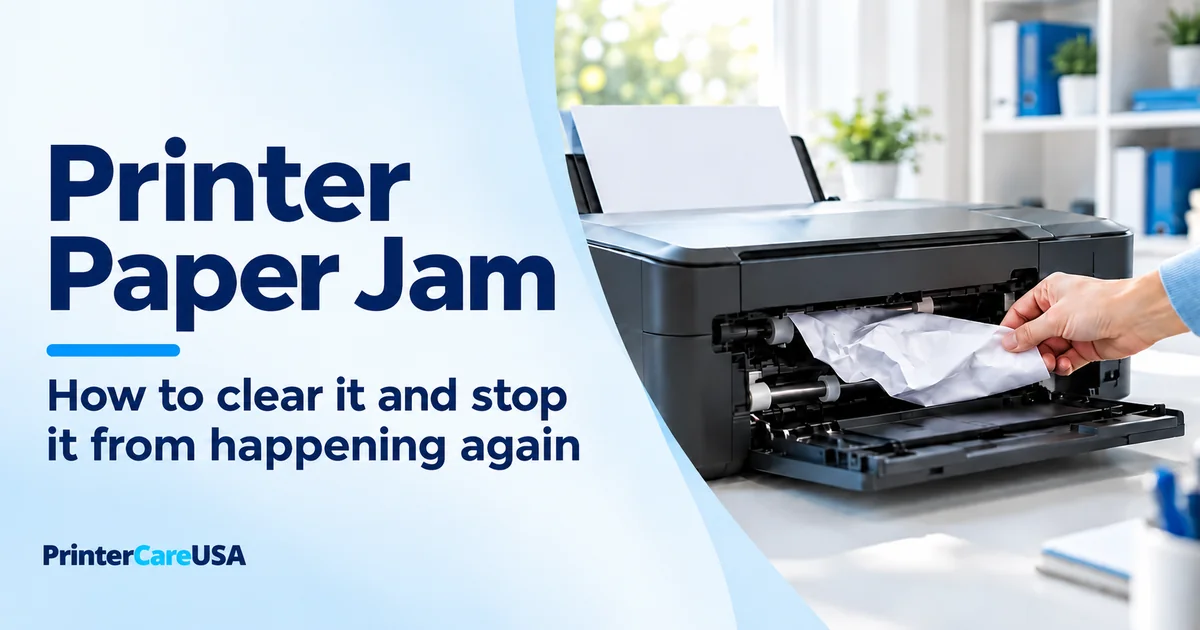
Most paper jams come from one of three places: the pickup roller area, the space under the carriage or toner cartridge, or the rear access door. Pull any stuck paper slowly in the direction it was traveling, never backwards against the rollers. If the printer still shows a jam with nothing visible inside, a scrap the size of a fingernail is usually holding the sensor down somewhere in those same three spots.
A paper jam is rarely mysterious once you know where to look. It almost always means one specific thing: a sheet, a scrap or a sensor is in the way of the path the printer expects. Clear the physical cause, reset the sensor and most jams don't come back for months.
How to clear a paper jam without damaging the printer
Open every access door the printer has before you pull anything. Most jams clear faster from a second angle than by yanking at the tray.
Pull paper slowly, in the direction it was already moving through the printer. Toward the output, not back toward the tray. Pulling backward drags the sheet against the rollers and tears it. A torn corner left behind is exactly what causes the "still jammed" message five minutes later.
Use both hands and keep the paper flat as you pull. A sheet that tears while you're removing it is worse than the jam itself, since now you're hunting for a scrap instead of a full sheet.
If the printer has a toner cartridge, let it sit for 10 minutes before you touch anything near the fuser. That area runs hot enough to burn skin on laser printers mid-job.
What kind of jam you have, based on where it stops
Where the paper stops narrows down the cause before you even open a panel.
Jammed right at the tray, barely entered. Almost always the pickup roller. It grabbed the sheet, then lost grip partway in. Check the roller for glazing or debris.
Stopped halfway through, visible from the middle. Usually a guide problem or a size mismatch. The path itself is fine, but the sheet got pushed off-center and caught on an internal edge.
Jammed right before or at the output tray. Common on laser printers specifically. It often points at the fuser rollers. A sheet that gets most of the way through and stalls right at the end has usually picked up too much heat or pressure right before exit.
Stuck inside the duplexer, only on two-sided jobs. The paper made it through once, flipped for the second side and caught on the way back in. Curled paper or a worn duplex roller are the usual reasons.
Where paper actually hides after a jam
Four spots account for almost every jam, on almost every brand, regardless of whether it's an inkjet, a laser or an all-in-one.
The pickup roller area. This is where paper first grabs from the tray. Shine a light into the tray slot and look at the rubber roller. A curled corner wrapped around it is the single most common hiding spot.
Under the carriage or cartridge. Open the main access door. On inkjets, the print carriage may be parked off to one side; power the printer off and on with the door open so it re-centers for access. On laser printers, remove the toner cartridge and look at the path underneath it.
The duplexer. If the printer has a removable rear unit for double-sided printing, pull it out and open its inner cover. Scraps collect here after almost every double-sided jam. This spot gets skipped constantly because it isn't obvious.
The rear access door or cleanout. Nearly every printer has one, even compact inkjets that hide it as a small panel or pull-off cover. Check it even when the jam seemed to happen at the front.
Printer shows paper jam but there is no paper stuck inside
This is its own specific problem. It's not really about paper.
The jam message comes from a sensor, usually a small mechanical flag or an optical beam, sitting somewhere in the paper path. Paper passing through moves the flag or breaks the beam. The printer reads that as normal. Something else holding that same flag down, or blocking that same beam, reads as a jam, whether or not any actual paper is involved.
The usual culprits:
A torn corner or label edge caught on the pickup roller or a sensor lever
Built-up paper dust on an optical sensor window, especially in dry climates or high-volume offices
A mechanical sensor lever in the tray that's stuck or bent, so it never releases
Toner or ink residue coating a sensor near the cartridge area
Clean sensor windows with a dry, lint-free cloth or a cotton swab. Skip compressed air directly on the lens itself, since it tends to push dust deeper into the housing instead of out. Compressed air works fine for the open paper path elsewhere.
Once everything is clear, power the printer off, unplug it for a full 60 seconds, then power back on. The sensor state resets on startup. That's usually the step that actually clears a phantom jam message once the physical cause is gone.
Why does my printer keep jamming every time I print
A jam that keeps coming back has a different cause than a one-time jam. Look at what's feeding paper, not what's stuck.
Worn or glazed pickup roller. Rubber rollers get smooth and shiny with age. A smooth roller can't grip paper reliably. It's the most common reason for repeated jams on printers more than a couple of years old. Rollers are a cheap, replaceable part on most models.
Worn separation pad. This small pad sits just past the roller and keeps the printer from pulling more than one sheet at a time. Once it wears down, the printer grabs two or three sheets together. The extras jam right at the entrance.
Paper that's damp, curled or the wrong weight. Paper absorbs humidity from the air faster than most people expect. Damp sheets stick together and misfeed. Fan the stack before loading. Store paper somewhere dry.
An overfilled tray. Past the tray's fill line, the pickup roller can't apply even pressure to the top sheet. Jams follow.
Guides set too tight or too loose. Guides that pinch the stack cause misfeeds. Guides with too much play let paper shift sideways mid-feed. Set them snug against the stack without bowing it.
Wrong paper size set in the driver or the panel. If the printer thinks it's feeding Letter and you loaded A4 (or the reverse), the path adjusts incorrectly and jams partway through.
Common jam symptoms at a glance
| What you see | Likely cause | Fix |
|---|---|---|
| Multiple sheets feed together | Worn separation pad, or damp paper | Fan the stack, load fresh paper, replace the pad if it keeps happening |
| Paper stops at an angle | Guides too loose, or wrong size set | Set guides snug, match the panel's paper size to what's loaded |
| Jams only on double-sided jobs | Duplexer roller wear, or paper too light | Use heavier paper, test a single-sided print, clean the duplexer rollers |
| Jams with envelopes or labels | Wrong feed path used | Use the manual or rear feed slot, set media type in the driver |
| Grinding sound before the jam | Foreign object, or a damaged gear | Check under the carriage; if the noise continues with nothing found, it's likely a mechanical fault |
| Jam right after installing a new cartridge | Shipping tape or a protective strip left inside | Recheck the cartridge and the area around it for leftover packaging |
How to stop paper jams from happening again
A few habits prevent most repeat jams entirely.
Fan a new ream before loading it. Sheets straight from the packaging stick together slightly. That's enough to cause a double-feed on the first print.
Keep paper in its wrapper or a closed drawer between uses, especially in humid climates. A ream left open on a shelf for a few weeks picks up enough moisture to start misfeeding.
Match the paper weight to the job. Standard 20 lb copy paper works for most single-sided printing, but duplex printing and laser fusing both do better with slightly heavier stock, around 24 lb or 90 gsm.
Clean the pickup roller every few months with a lint-free cloth, lightly dampened with water, not solvent. A glazed roller is one of the easiest jam causes to prevent and one of the most common to ignore.
Don't overfill the tray. Load to the fill line, not above it.
Pay attention if jams started right after you changed print quality settings. Draft and high-quality modes feed paper at slightly different speeds. Switching mid-job on some models causes an occasional hiccup. It's an easy thing to rule out before you start taking the printer apart.
When to call a technician
Most paper jams clear with the steps above. Call in help when:
Jams keep happening even after cleaning the rollers and checking the sensor zones
The printer grinds or makes unusual noise before or during a jam
You've replaced the pickup roller or separation pad and jams continue
It's a laser printer and you're not comfortable working near the fuser
PrinterCareUSA technicians walk through jam clearing and roller cleaning remotely on every major brand. A technician connects to your computer securely. You watch every step. You only pay once the printer is actually printing again.
Fix My Printer: $49 flat →
$0 if we can't fix it. Callback within 30 minutes, 9 AM to 9 PM EST.
Brand-specific paper jam guides
Zone locations and panel names vary a bit by brand. For exact steps and model notes:
HP paper jam error guide
Canon paper jam error guide
Brother paper jam error guide
Frequently asked questions
How do I clear a paper jam in any printer without damaging it?
Open every access door first, then pull the paper slowly in the direction it was already traveling, never backward against the rollers. Use both hands and keep the sheet flat. If it tears, check the roller and sensor area for the leftover scrap before closing everything up.
Why does my printer keep jamming paper every time I print?
Almost always a worn pickup roller or separation pad that can't grip a single sheet cleanly anymore, though damp paper, an overfilled tray or loose guides cause the same symptom. Clean the roller first, since that fixes the majority of repeat jams without replacing anything.
Printer shows a paper jam error but there is no paper stuck inside. What's wrong?
A sensor in the paper path is being held down or blocked by something other than a full sheet: a torn scrap, dust, or a stuck mechanical lever. Clean the sensor area with a dry cloth, then power-cycle the printer for a full 60 seconds unplugged so the sensor state resets.
Is it safe to use compressed air to clear a jam?
In the open paper path, yes. Directly on an optical sensor lens, no, since it can push dust deeper into the housing instead of clearing it. A dry cotton swab is the safer choice right on the sensor itself.
How often should I clean the pickup roller to prevent jams?
Every three to six months for normal home or small-office use, more often in dusty environments or high-volume printing. A roller that looks shiny instead of textured is already overdue.
Can a wrong paper size setting really cause a jam?
Yes. If the printer's panel or driver setting doesn't match what's actually loaded, the paper path adjusts for the wrong dimensions and the sheet can stop partway through or feed at an angle. Match the setting to the paper every time you switch sizes.
Do laser and inkjet printers jam for different reasons?
Mostly not. The roller and sensor causes are the same across both. Laser printers add one extra risk: the fuser area runs hot enough to burn skin, so let it cool for about 10 minutes before reaching in near the toner cartridge or the area right past it.
Will ignoring a paper jam damage my printer?
Usually not right away, but repeated jams put extra strain on the pickup roller and the drive gears each time you force a stuck sheet out. A jam cleared gently and quickly rarely causes damage. One left in place while you keep hitting print can crease or tear internal parts. It also pushes whatever roller or sensor problem is underneath toward needing a real repair.
Still stuck? Get printer help
Independent remote support. A technician can guide you through the next steps while you watch. $49 flat if fixed, $0 if we can’t fix it.
Fix My Printer →